

Visual novels can become surprisingly large in terms of file size due to the number of images, and with download hosts having daily download limits (MEGA has a 5GB limit and GoFile has 8GB), it’s important to reduce the size of your images as much as possible. You’re images will likely be created as JPEGs or PNGs, and while they are known for their quality, they are quite bulky. This is fine for smaller visual novels, but when you have thousands or renders this can cause problems for your players.
If the size of your visual novel exceeds the size of your hosts daily download limit, that means your players will need to subscribe to the host and pay extra fees just to play your game. A lot of people won’t be willing to do that for various reasons so you’re immediately losing players by not reducing the file size. The latest update of The Home of Pleasure (version 0.3 at the time of writing this) has 6155 renders and is 4.14GBs. I use GoFile to host my downloads so I am just past the halfway mark for the daily download limit. If I didn’t reduce the size of every render added to the game and left them all as JPEGs, The Home of Pleasure would easily be over 10GBs by now.
What Are Your Options?
When your goal is to reduce the file size of your images, you have two viable options; convert your JPEGs and PNGs into either WEBP or AVIF. There are other similar image file types but not all of them work with Ren’py so you’ll want to stick with either WEBP or AVIF as they do work with Ren’py. Out of the two, AVIF has the smallest size, so realistically you’re going to want to convert all of your images into AVIF files.
So how can you do that? There are numerous online file converters, but the vast majority of these have usage limits and subscription fees for higher usage so they aren’t ideal for a visual novel. That’s where XnConvert comes in. XnConvert is a free bulk image convertor that you can run on your PC with no limits or subscription fees. It lets you convert thousands of images in one go without any issues so it really is a vital tool in the AVN development workflow. To demonstrate how good XnConvert is, I took 53 JPEGs rendered at 4K, reduced their resolution to 1080×1920 (so they can be used in game) and converted them into AVIFs. It took 11 seconds and reduced the total file size from 303mb to 7mb.
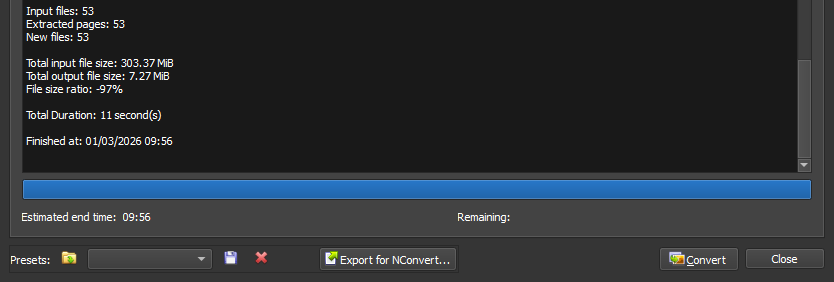
I usually do this step after post-processing the renders and my file reduction tends to sit around 70% on average, so don’t expect a 97% reduction every time. Each image varies in reduction due to the information held in the file and the actions you’re taking during the conversion process.
How to Reduce the Size of Images
Step 1
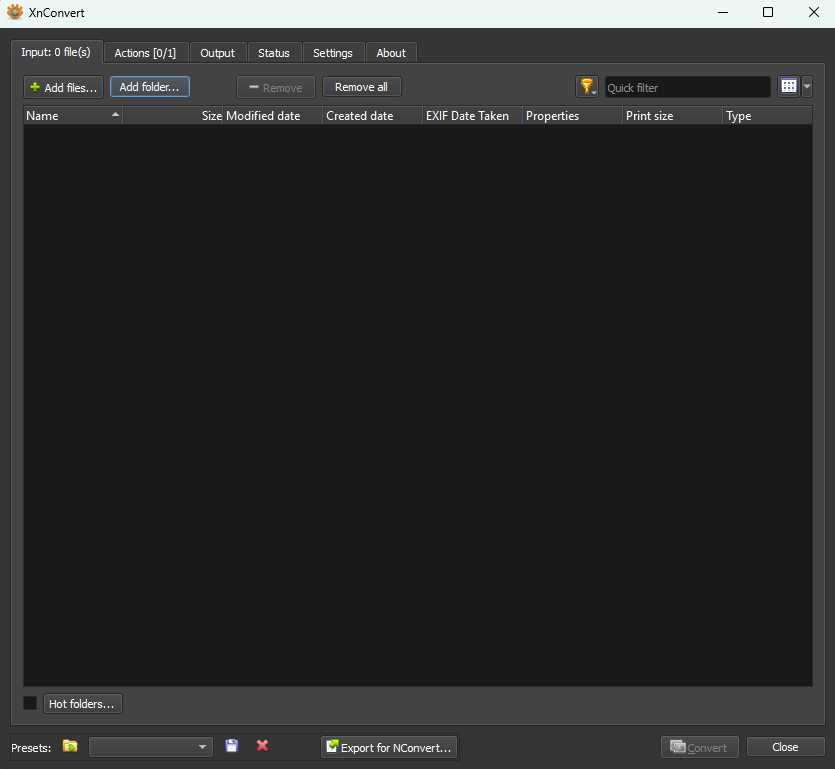
After downloading XnConvert (I’m assuming you’re taking this route as it really is the best option), you’ll first need to tell the program what files or folder you want to convert by clicking the relevant button at the top of the page. Before converting any PNGs, read the section at the bottom of this guide.
Step 2 (optional)
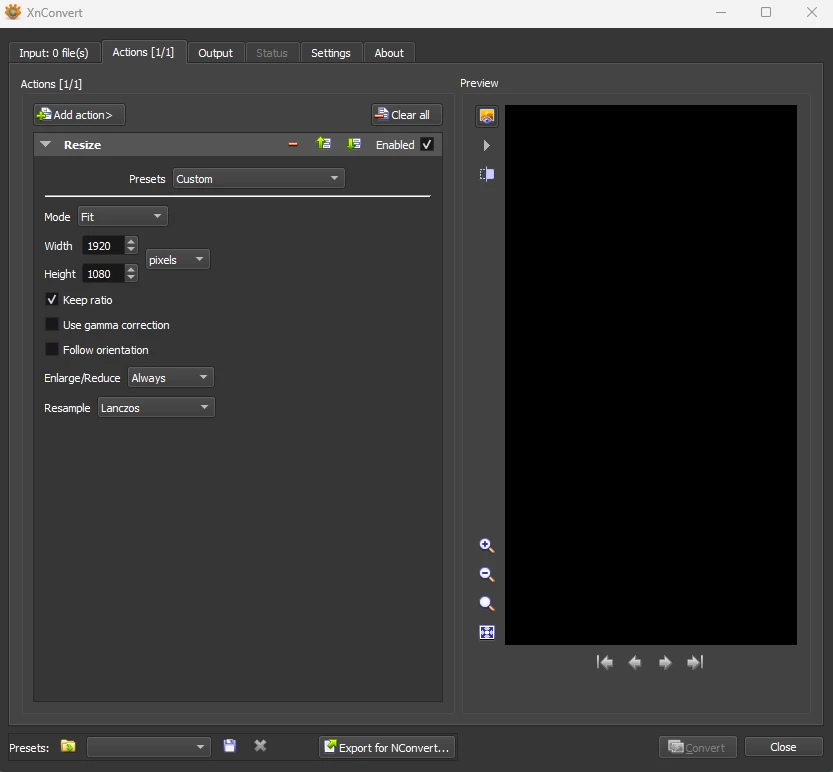
If, like me, you render your images at a larger resolution and scale them down to be used in your game, XnConvert also allows you to do that as part of the conversion process. I’m now rendering in 4K so I have to scale every image down to 1080×1920 in order for them to be viewed in game.
A higher image resolution means a higher quality image, but it also means that players with larger screens will still see high quality images instead of a blurry image that’s been stretched to fit the resolution of their monitor. That’s because a 4k image scaled down to 1920×1080 still appears as 4k when viewed on a larger screen. Scaling images down doesn’t cause them to lose much quality but it does reduce the file size, which is why I always recommend setting your game’s resolution to 1080×1920, even if you plan to make 2k or 4k renders.
So if you do render your images in 2K or 4K and want to scale their resolution down, click the actions tab then add action. On the dropdown menu, go to transform, then click resize. Ensure the ‘Mode’ is set to ‘fit’, change the width and height to the dimensions you need for your game, ensure ‘Keep ratio’ is ticked, and make sure ‘Enlarge/Reduce’ is set to ‘Always’.
Step 3
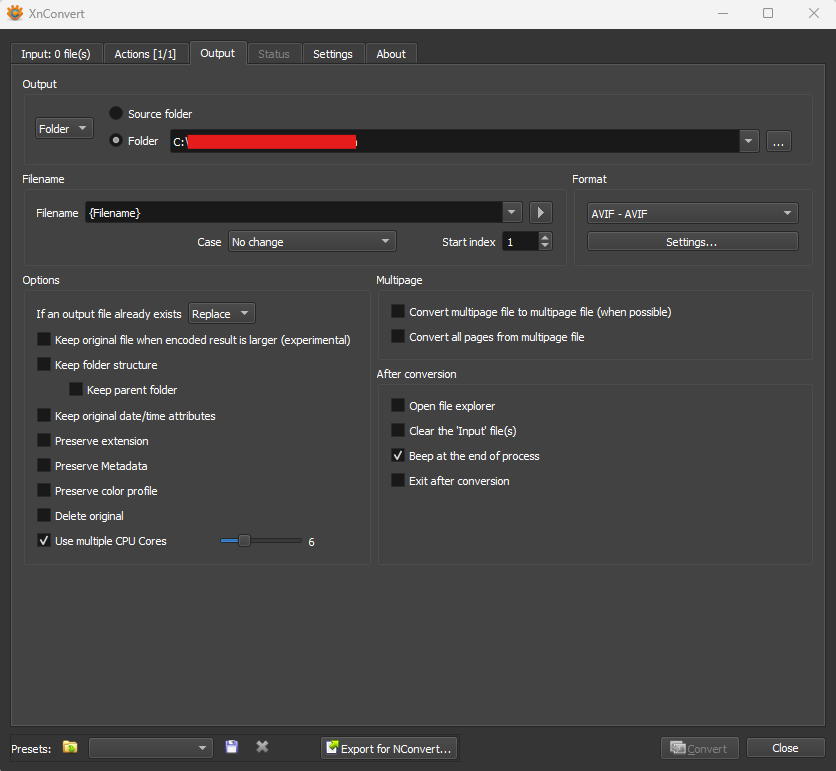
Now we choose the file output type. Click the output tab then choose what folder you want your converted images to be sent to. Personally, I prefer to have the output images sent to a dedicated empty folder instead of sending them to the same folder the images were input from. This way, if anything goes wrong with the process, all of the original images still exist separately from the new resized files so I can start the process over again if needs be. It’s very risky to overwrite the renders because if you’ve missed a tick box or an option, you’ll have to rerender all of your images which is time consuming. That’s why it’s always safer to use separate folders for bulk actions.
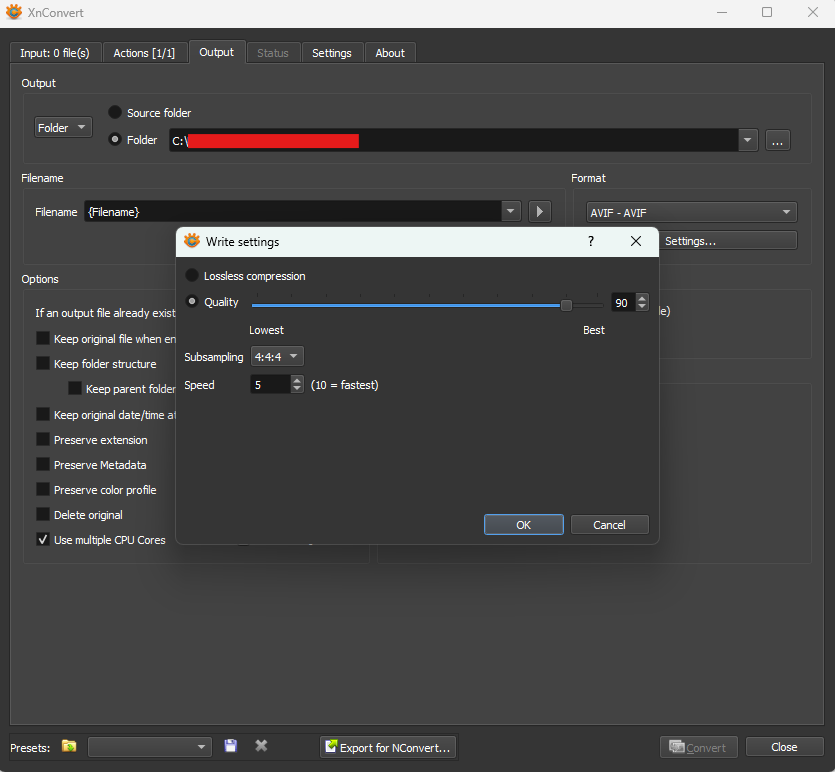
On the right hand side is the format section. Select that and choose AVIF (or WEBP). There are several different settings here that are all self explanatory so you may end up with different options selected than I have as you cater the software to your needs.
Once you’ve set everything up, click the settings button in the ‘Format’ section. Lossless compression means the scale will be reduced but not the file size, so don’t select that. Instead, click ‘Quality’ and then choose the percentage you want. This might be worth playing around with to find what works best for you. The lower the number, the lower quality the image becomes. Personally, I always have this set to 90. The 10% reduction in quality isn’t noticeable to the human eye, but it allows XnConvert to drastically reduce the size of the image files.
Step 4
Click convert in the bottom right, then wait for the images to be converted. And that’s it. You’ve now successfully reduced the size of you images and the overall size of your visual novel.
When to Reduce PNGs
Sometimes an image needs to stay as a PNG. Transparent backgrounds aren’t supported by other file types so if the PNG has a transparent background, don’t convert it to AVIF or WEBP. So things like you’re logo, point and click buttons, images for a phone system (if you have one), and screen overlays need to stay as PNGs in order for them to work correctly in game. If you’re unsure of what you can and can’t convert, only reduce the size of the main images of the game and leave everything else as their original file types.